 how-to
How to Fix WiFi Dead Zones in Large Homes: 7 Steps
Table of Contents
- Map Your Home and Identify WiFi Dead Zones
- Reposition Your Router for Centralized Coverage
- Mesh WiFi vs WiFi Extenders: Which Works in Large Homes
- The Benefits of Ethernet Backhaul for WiFi Stability
- Reduce Signal Interference and Channel Congestion
- Update Firmware and Optimize Router Settings
- When to Call a Professional for WiFi Dead Zones
- Frequently Asked Questions
Last Updated: September 23, 2026
Map Your Home and Identify WiFi Dead Zones
A WiFi dead zone is any spot where your wireless signal drops too low to hold a stable connection. Finding those spots is the first step toward fixing them, and you can do it in about 20 minutes with a phone and a pencil.
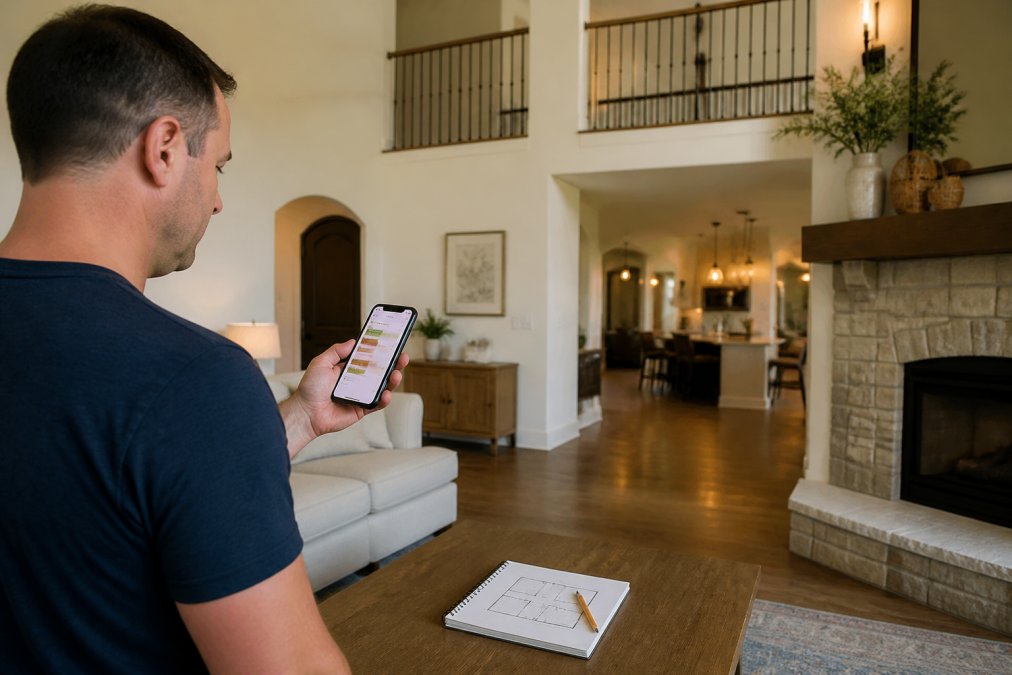
Below, we'll show you exactly how to find yours.
How to Test WiFi Signal Strength in Every Room
Testing WiFi signal strength is simple: walk room to room with your phone and log the signal reading in each spot. Most phones show bars, but a free WiFi analyzer app gives you a number in dBm, which is far more useful.
- -30 to -50 dBm: excellent signal, full speed
- -50 to -60 dBm: good, reliable for streaming
- -60 to -70 dBm: weak, video calls will stutter
- -70 dBm and below: dead zone territory
Why Building Materials Create Signal Attenuation
Signal attenuation is the loss of WiFi strength as the radio wave passes through a physical object. Every wall, floor, and appliance weakens the signal a little.
Some materials kill it outright:
- Brick and stone block far more than drywall
- Metal lath behind plaster acts like a cage
- Concrete with rebar stops most 5 GHz signals cold
- Foil-backed insulation and radiant barriers reflect signal back
Reposition Your Router for Centralized Coverage
Centralized placement is the single highest-impact fix, and it costs nothing. Put the router in the middle of the home, on the main floor, out in the open. Not in a closet. Not in the basement corner. Not behind the TV.
Antenna Orientation and Beamforming Basics
Antennas matter more than most people think. If your router has external antennas, point them in different directions, one vertical, one horizontal. That spreads the signal across both planes.
Mesh WiFi vs WiFi Extenders: Which Works in Large Homes
For most large homes, a mesh network beats a WiFi extender, but the reason matters more than the verdict. A mesh node and an extender both rebroadcast a signal. The difference is how they talk to the rest of the network.
Here's the honest breakdown:
| Option | Best For | Weakness |
|---|---|---|
| WiFi extender | One small dead spot, no cable possible | Roughly halves throughput at the edge; SSID confusion; no clean handoff |
| Mesh system (wireless backhaul) | Whole-home coverage where cabling isn't practical | Each wireless hop adds latency and cuts throughput; nodes compete with clients for airtime |
| Mesh system (wired backhaul) | Multi-story homes, home offices, camera-heavy setups | Requires Ethernet runs to each node location |
| Hardwired access point | Best speed and stability per dollar | Requires an Ethernet run and a PoE switch or injector |
When a Range Extender or Repeater Makes Sense
A range extender or repeater makes sense when you have exactly one problem area and no way to run a cable. It grabs the existing signal, amplifies it, and rebroadcasts it.
A few practical rules for extenders in large homes:
- Use a dual-band extender and set the extended network on the opposite band from the one it receives on, so it isn't listening and talking on the same channel.
- Give the extended network a distinct SSID if your devices don't hand off cleanly. Manual switching beats a sticky connection.
- Don't chain extenders. Two hops is the practical ceiling before latency and throughput collapse.
Why Node Count and Placement Beat Raw Specs
Mesh marketing pushes coverage numbers, but in a large home the limiting factor is usually how many wireless hops a packet takes to reach the router. Most practitioners find that beyond two wireless hops, throughput drops enough that video calls and gaming suffer, even on Wi-Fi 6 hardware. Strategic placement of wired backhaul nodes remains the most effective method to improve smart home coverage while minimizing the latency penalties inherent in multi-hop wireless configurations.
The Benefits of Ethernet Backhaul for WiFi Stability
Backhaul is how your mesh nodes or access points talk back to the main router. Wireless backhaul uses the airwaves. Ethernet backhaul uses a cable. The cable wins every time.
Hardwired vs Wireless Backhaul: Latency and Throughput Compared
The difference shows up most in video calls and gaming. Wireless backhaul adds a hop, and every hop adds delay. A wired connection skips that hop entirely.
Reduce Signal Interference and Channel Congestion
Interference is the silent killer of large-home WiFi. Your neighbors' networks, your microwave, cordless phones, baby monitors, and even your own smart devices all compete for the same radio frequency space. In a large home the problem compounds, because more square footage usually means more devices and more walls reflecting signal in unpredictable directions.
A practical scan-and-switch routine:
- Run a WiFi analyzer app on your phone and walk the home. Note which channels are strongest at each location, those are your neighbors.
- On 2.4 GHz, set your router to channel 1, 6, or 11, whichever is least crowded. Avoid "auto" if your router tends to park on a busy channel.
- On 5 GHz, leave width at 80 MHz unless you're in a very dense area; drop to 40 MHz if you see heavy overlap.
- Re-scan after 24 hours. Neighbor channels shift, especially in apartment-heavy areas.
IoT Device Interference and Dual-Band vs Tri-Band
Every smart plug, doorbell, thermostat, camera, and bulb adds to the noise. Many of these IoT devices only speak 2.4 GHz, and they clog that band fast. A home with 30+ smart devices can saturate 2.4 GHz airtime even when raw throughput looks fine, the symptom is laggy responses and dropped commands, not slow downloads.
A few mechanisms worth knowing:
- Airtime fairness. Older 2.4 GHz-only IoT gear often uses slow data rates. A single slow device can consume a disproportionate share of airtime, starving faster clients on the same band.
- Beacon overhead. Each access point and many IoT devices broadcast beacons. Dozens of beacons per second add up.
- Channel width trade-offs. Wider channels (40 MHz on 2.4 GHz) increase overlap with neighbors. In a crowded area, 20 MHz on 2.4 GHz is often the faster real-world choice.
Separating IoT Traffic From Everything Else
If your router supports it, put IoT devices on a separate SSID or guest network on 2.4 GHz. This does two things: it keeps slow devices from dragging down your main network's airtime, and it isolates cheap smart gear from your laptops and phones from a security standpoint.
- 2.4 GHz main SSID: IoT, printers, older gear
- 5 GHz SSID: phones, laptops, streaming
- Second 5 GHz band (tri-band): gaming, video calls, work-from-home
Update Firmware and Optimize Router Settings
A firmware update is the easiest fix people skip. Router makers patch bugs, close security holes, and sometimes improve performance. Log into your router's admin page and check for updates, or set it to auto-update.
While you're in there, adjust a few settings:
- Turn on MU-MIMO so the router serves multiple devices at once
- Enable client steering to push devices to the best band
- Set Wi-Fi 6 or Wi-Fi 6E mode if your hardware supports it
- Give 2.4 GHz and 5 GHz separate names if you want manual control
When to Call a Professional for WiFi Dead Zones
Sometimes the fix isn't a setting. It's a cable. If your home has thick walls, multiple floors, or a detached garage, no amount of router tweaking will reach every corner. That's a wiring problem, not a WiFi problem.
Frequently Asked Questions
How to improve WiFi coverage in a large house?
Start by mapping your home and testing signal strength in each room using a WiFi analyzer app. Move your router to a centralized, elevated location. If dead zones remain, add a mesh network with wired ethernet backhaul between nodes. For homes with thick walls or multiple floors, a professional assessment can identify the best placement for access points and structured cabling. Hardwiring access points typically delivers the most reliable coverage in large homes.
What is the best WiFi solution for a large house?
A mesh network with wired ethernet backhaul is the most reliable option for large homes. Ethernet backhaul eliminates the throughput loss and latency that wireless backhaul introduces between nodes. If running cable is not feasible, a tri-band mesh system with a dedicated backhaul radio is the next best choice. Powerline adapters can work in a pinch but often underperform in older homes with noisy electrical wiring. A professional can assess your floor plan and recommend the right mix.
What causes dead zones for WiFi?
Dead zones come from a combination of distance, physical obstructions, and signal interference. Building materials like brick, concrete, plaster, and metal foil insulation attenuate radio frequency signals more than drywall. Channel congestion from neighboring networks and IoT devices on the 2.4 GHz band adds noise. Router placement in a corner or basement worsens coverage. Packet loss and low dBm readings in specific rooms confirm the problem. Mapping your home helps pinpoint which cause is dominant.
Can hardwiring access points improve home network stability?
Yes. Hardwiring access points with ethernet backhaul removes the wireless link between your router and each node, which cuts latency, reduces packet loss, and preserves throughput across the network. In large homes with multiple floors, wired access points also support client steering and MU-MIMO more effectively. The result is consistent signal strength in every room rather than the drop-offs that plague repeater-based setups.
WiFi dead zones in large homes usually come down to three things: bad placement, weak backhaul, and interference. You can fix the first two yourself, but the third often needs a cable run that's best left to a pro. If you've moved the router, updated the firmware, and still have dead spots, it's time for a real fix. Get a free estimate from Integrity Home Technologies and let our experienced technicians design coverage that reaches every room.